The first step in getting to know your target in almost every pentesting assignment is getting to know your target. Almost everyone one of you who has done a pentesting assignment or even a box in TryHackMe or HackTheBox or something similar might have come across nmap. Although it is well known that you can use nmap to do an initial assessment of your target, a lot of people tend to copy paste commands and flags without knowing what they are used for. This blog is intended to cover basic nmap commands and make you understand "when" to use them and "where"; most importantly "why". Whether you are seasoned beginner or an expert who just wants to go through the basics again, this one's for you!
You have an IP. What services are exposed?
Stage 1: Identify the ports
The client provides you with a target IP, 10.10.20.15. You need to determine which network services are exposed before deciding what to test next.
Your first command :
nmap 10.10.20.15
And you get something like:
22/tcp  open  ssh
80/tcp  open  http
443/tcp open  https
What Nmap does
Performs host discovery.
If the host appears up, scans the 1,000 most commonly used TCP ports.
Classifies the ports based on the responses.
Reports the associated service names, which are initially based mainly on port-number conventions. You're now aware of 3 potentially accessible services
Stage 2: Know the versions
Now that you know the ports, you need to know the services open and their versions. Perhaps, one of them is using an outdated version and there are exploits in the wild you could use to advance. So you do:
nmap -sV 10.10.20.15
The -sV option sends additional probes to open ports to identify the application protocol and software version where possible. Sample output:
PORT    STATE SERVICE VERSION
22/tcp  open  ssh     OpenSSH 9.x
80/tcp  open  http    nginx 1.x
443/tcp open  ssl/http nginx 1.x
Stage 3 : You don't find a service you know exists
Now suppose the client tells you that the target also hosts an administrative service. You expect it to be accessible on TCP port 8443, but your scan doesn't show it.
Don't immediately assume that the service is hidden. There are several explanations.
Stage 4: Missing service?
You know from your client or from the challenge description that there is a service X running in the machine. However, you don't see it in the test results. What could have happened here?
Possibility 1: You didn't scan the right port
The service may run on TCP 8443, but the default scan checks only its selected 1,000 common ports.
Next step:
nmap -p- 10.10.20.15
This checks all TCP ports from 1–65,535.
Possibility 2: The service uses UDP
You expect DNS or SNMP, but you've only scanned TCP. A TCP scan won't establish whether the corresponding UDP service is exposed.
Next step: sudo nmap -sU -p 53,161 10.10.20.15
This checks UDP ports 53 and 161, commonly associated with DNS and SNMP.
Possibility 3: A firewall is filtering the traffic
The service might exist, but your scan originates from a network location that isn't allowed to reach it.
Next step: inspect the port state, compare the approved network paths, and check firewall policy or logs if available.
Possibility 4: You're testing from the wrong network location
An internal admin panel might be accessible only from a VPN or management subnet. An external scan may not see it at all.
Next step: confirm the engagement's permitted source locations and repeat the assessment from the authorised vantage point.
The important lesson is to diagnose the limitation before changing the scan technique. A different TCP flag cannot discover a UDP-only service, and a stealth scan cannot guarantee access through a correctly configured firewall.
Stage 5: The target responds, but ports are closed or filtered
Case A: closed
Example:
PORT     STATE   SERVICE
8443/tcp closed  https-alt
A common reason is that the host returned a TCP reset because nothing is listening on that port.
Real-life possibilities include:
The service is stopped or has been decommissioned.
The application is listening on a different port.
You have the right IP but the wrong server.
A firewall or security appliance actively rejects the connection with a reset.
Pentester's next step: verify the target, confirm the expected service and port with the engagement information, and compare behaviour from another authorised network location. Don't label a port closed by default as evidence of firewall filtering.
Case B: filtered
Example:
PORT     STATE     SERVICE
8443/tcp filtered  https-alt
Nmap cannot determine whether the port is open because a firewall may be dropping the probes or responses.
Real-life examples:
An internet-facing firewall allows TCP 443 but blocks TCP 8443.
A cloud security group permits access only from a corporate VPN.
An endpoint firewall drops incoming connections from untrusted subnets.
An intrusion-prevention system drops probes that match a security rule.
Pentester's next step: check the authorised source IP, routing, VPN status and relevant firewall logs. If the assessment includes testing the firewall's filtering behaviour, choose a scan technique suited to that specific question.
Stage 6 : You need to understand the firewall, not just the ports
Suppose a client says: "Our firewall should block unsolicited connections to our servers. Can you validate that?"
Your job is not simply to find a different command that makes the firewall disappear. You need to determine what the firewall permits, blocks or rejects.
Option 1: SYN scan - the normal starting point
sudo nmap -sS -p 22,80,443,8443 10.10.20.15
This sends TCP SYN probes to the specified ports.
Why use it?
It is an efficient way to determine TCP port states.
It doesn't complete the TCP handshake for open ports.
It provides clear distinctions between open, closed and filtered in typical cases. This is generally the best starting point for TCP port discovery when you have raw-packet privileges.
You may have noticed that I used
sudohere. This is because in order to disassemble and reassemble requests on a packet level,nmapneeds escalated privileges
Option 2: ACK scan - investigate packet filtering
sudo nmap -sA -p 22,443,8443 10.10.20.15
An ACK scan sends TCP packets with the ACK flag set. It can help determine whether probes appear to be filtered or unfiltered, which is useful when evaluating firewall rules.
However, it doesn't tell you whether a port is open.
Example: a firewall may allow traffic from a management subnet but block it from an external test network. Comparing authorised scans from the two locations, alongside firewall logs, can help establish whether the policy behaves as intended.
Option 3: NULL, FIN and Xmas scans
sudo nmap -sN 10.10.20.15
sudo nmap -sF 10.10.20.15
sudo nmap -sX 10.10.20.15
These send TCP probes with unusual flag combinations. They are useful for understanding how different operating systems and packet filters handle non-standard probes.
In some older or stateless filtering configurations, rules are primarily built around blocking SYN packets that initiate connections. Probes without SYN may behave differently under such rules.
But the result is not guaranteed to be more accurate or less detectable. Modern firewalls and IDS/IPS systems can identify unusual TCP probes, and some operating systems return resets in cases where these scans expect silence. That can make open and closed ports difficult to distinguish.
Real-life use: In an explicitly authorised firewall assessment, compare these results with the SYN scan and firewall logs to understand the rules' behaviour. Don't infer that a silent response means an open service.
Stage 7 : The client wants a stealth assessment
Now suppose the engagement has a specific requirement. The IDS/IPS is up and running. You can't trigger any uneccessary alarms. You need to find the exposed services with minimal disruption.
This is where you need to distinguish low-impact scanning, scan types historically called stealth scans, and attempts to evade detection. They're related, but not interchangeable.
First: -sS is not invisible
sudo nmap -sS 10.10.20.15
A SYN scan is often called a stealth scan because it normally avoids completing TCP connections to open ports.
But modern firewalls and network monitoring systems can still detect it. If your engagement requires stealth, the rules of engagement should explicitly define what is allowed and how detection is measured.
Second: Reduce the scan's intensity
Nmap timing templates let you adjust scan speed:
nmap -T2 10.10.20.15
-T2 is a slower timing template than the default. It can be useful when a client asks you to limit the scan's rate and load.
For an even more controlled assessment, use a small port list and an explicitly defined timing policy:
nmap -T2 -p 22,80,443 10.10.20.15
Third: use the scan results to measure detection
During a properly scoped assessment, compare:
What
nmapobserved.What the firewall logged.
What the IDS/IPS alerted on.
Whether the security team correctly identified the source, target and time of the scan. This produces a meaningful result: not merely whether a command was detected, but whether the organisation's monitoring controls worked as intended.
What about decoys and packet fragmentation?
Nmap also has specialised options such as -D for decoy scanning and -f for IP fragmentation. These are designed to examine particular filtering and monitoring behaviours, but they can complicate attribution and produce misleading results.
For a real pentest, use them only when the signed scope explicitly permits those techniques and the client understands their impact. Fragmentation can be blocked or reassembled by network devices, while decoys do not guarantee that the actual scanner cannot be identified.
Stage 8: The pentester's decision tree
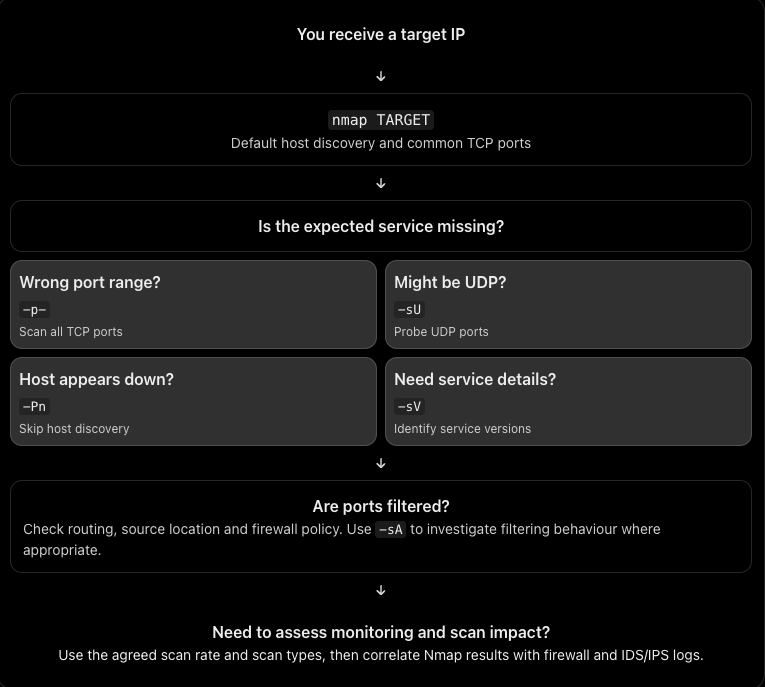
The decision tree is a guide rather than a rigid sequence. You may need to revisit earlier steps as new evidence emerges
Final notes
A good pentester doesn't keep changing flags until something works. They form a hypothesis about what is happening on the network, choose a scan that tests that hypothesis, and interpret the result within its limitations.
Use the official Nmap Port Scanning Techniques reference for packet-level details, and TryHackMe Further Nmap as the practical learning sequence.
About the author
- From Flaws to Resilience. Build.Break.Secure
Comments
Join the discussionNo comments yet. Be the first to comment.
A beginner's pentesting guide
I know that you guys ask ChatGPT for everything starting from breakfast recipies to everyday tasks and career decisions. But sometimes you go on a trek, and you reach a mountain and you see a bear coming towards you ready to attack. You quickly pull out your phone and open ChatGPT to ask what to do. But alas, you don't have internet connectivity. Game over; You're dead. I don't know how many of you have encountered a bear like that in actual life but if you are reading this you probably (like me) realised you've leased your brain to AI and you're starting to become too dependent on it and you probably should go back to the basics. If so, I welcome thee to my series of blogs on "hacking". Throughout this series, we'll start from the basics of what the hell to do when you are given a pentesting assignment. Sometimes you will encounter definitions, sometimes we'll go through tryhackme rooms together and sometimes, you'll have to do the hard job of setting up stuff (and I'm sure you'll ask ChatGPT to do that but let's try to do that on our own).